Vinted Label Setup: Complete 4x6 Printer Setup Guide for Resellers
Complete Vinted label setup guide for 4x6 thermal printers. Compare automation tools vs manual cropping. Set up your printer, process labels automatically, and save hours with batch processing.
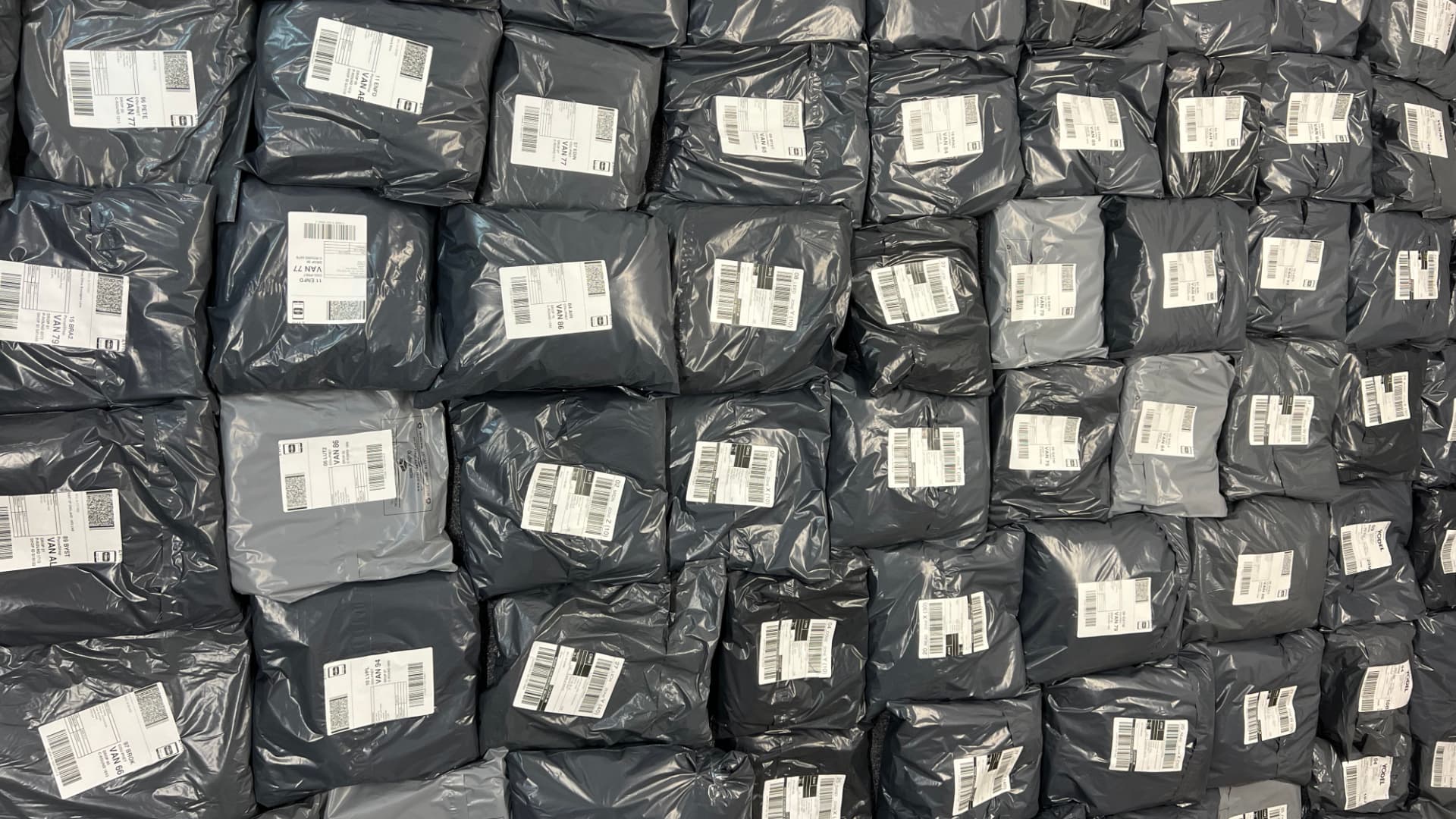
Set up Vinted labels for your 4x6 thermal printer in 2.5 minutes instead of hours. fetchin automatically fetches labels from your Vinted orders, crops them to perfect 4x6 format, adds SKUs, and merges everything into one print-ready PDF - all with one click.
The Problem: Vinted Labels Don't Fit 4x6 Printers
Vinted provides labels in A4 PDF format (8.27" x 11.69"), but most resellers use 4x6 thermal label printers (4" x 6" / 100mm x 150mm). Without proper setup, labels won't print correctly.
What happens without proper setup:
- ❌ Labels print too small or too large
- ❌ Wasted paper from incorrect sizing
- ❌ Manual cropping takes 20-30 seconds per label
- ❌ No automatic SKU matching - risk shipping wrong items
- ❌ Hours wasted every day for high-volume sellers
The Solution: Automated Label Setup with fetchin
fetchin is the fastest way to set up Vinted labels for 4x6 printers. Here's how it works:
- Install Chrome extension (30 seconds, one-time)
- Click "Process Labels" in the extension
- Print the merged PDF - labels are already cropped, SKUs added, and ready to go
What fetchin does automatically:
- ✅ Fetches all labels from your Vinted orders (no manual downloads)
- ✅ Detects courier type (Yodel, InPost, Evri, Royal Mail) automatically
- ✅ Crops each label to perfect 4x6 format
- ✅ Adds SKUs automatically from order data
- ✅ Merges into one print-ready PDF in correct order
- ✅ Works on any device (browser-based, no desktop app needed)
Time investment:
- Setup: 30 seconds (one-time extension install)
- Per batch: 2.5 minutes for 50 labels
- Time saved: 1.5-2.5 hours per 50 labels vs manual methods
Complete Setup Guide: fetchin (Recommended)
Step 1: Install Extension (30 seconds)
- Go to fetchin.app
- Click "Get Started" or "Install Extension"
- Add to Chrome (one-time install)
Step 2: Configure Your Printer
- Ensure your 4x6 thermal printer is connected
- In printer settings, set paper size to "4x6" or "4 x 6 inches"
- Test print one label to verify sizing
Step 3: Process Your Labels (2.5 minutes for 50 labels)
- Open fetchin extension
- Click "Process Labels"
- System automatically:
- Fetches all labels from Vinted orders
- Detects courier type (Yodel, InPost, Evri, Royal Mail)
- Crops to perfect 4x6 format
- Adds SKUs automatically
- Merges into one PDF
- Download the merged PDF
- Print all labels at once
Step 4: Match Labels to Orders
Labels already have SKUs printed on them, matching your picklist. Simply match SKU on label to SKU on item - no confusion, no mistakes.
Why fetchin Beats Manual Setup Tools
⚡ Speed: 2.5 Minutes vs 1.5-2.5 Hours
Manual tools (Prafia, Label Dropper):
- Download each label manually
- Crop each label manually
- Organize labels manually
- Match SKUs manually
- 50 labels = 1.5-2.5 hours
fetchin:
- Everything automatic
- 50 labels = 2.5 minutes
Time saved: 1.5-2.5 hours per 50 labels
🎯 SKU Integration: Automatic vs Manual
Manual tools: No SKU integration. Print labels, then manually match them to orders - time-consuming and error-prone. Risk shipping wrong items.
fetchin: SKUs automatically added to labels from order data. Labels match orders automatically - no confusion, no mistakes, no stress.
📦 Batch Processing: True Automation vs Partial
Prafia: One label at a time. No batch processing.
Label Dropper: Batch processing available, but still requires:
- Manual downloads from Vinted
- Manual organization
- No SKU integration
- Desktop app (only works on one device)
fetchin: True batch processing:
- Fetches all labels automatically
- Processes all at once
- SKUs included automatically
- One merged PDF ready to print
- Works on any device (browser-based)
🌐 Platform & Device Support
Manual tools: Vinted only, limited device support
fetchin:
- ✅ Vinted + Depop support
- ✅ Works on any device with Chrome
- ✅ No desktop app installation needed
- ✅ Access from laptop, desktop, or tablet
Comparison: Setup Methods
| Feature | Manual (Prafia) | Desktop App (Label Dropper) | Automated (fetchin) |
|---|---|---|---|
| Setup Time | 30 seconds | 5-10 minutes (download + install) | 30 seconds ⚡ |
| Time per 50 Labels | 1.5-2.5 hours | 1-2 hours | 2.5 minutes ⚡ |
| Label Fetching | Manual download each label | Manual download each label | Automatic from orders ✅ |
| Cropping | Manual selection per label | Automatic detection | Automatic, perfect 4x6 ✅ |
| SKU Integration | None - manual matching | None - manual matching | Automatic from order data ✅ |
| Batch Processing | One label at a time | Partial (still needs manual downloads) | Fully automated batch ✅ |
| Platform Support | Vinted only | Vinted + eBay | Vinted + Depop ✅ |
| Device Support | Any browser | One device only (desktop app) | Any device (browser-based) ✅ |
| Workflow Integration | Standalone tool | Standalone tool | Integrated with picklists ✅ |
| Best For | 1-5 orders/week | 5-10 orders/week | 10+ orders/day 🚀 |
Alternative Methods (For Reference)
Manual Method: Prafia Label Crop Tool
How it works:
- Download each label from Vinted manually
- Open Prafia Label Crop Tool (web-based)
- Manually select crop area (address + barcode)
- Save as 4x6 format
- Repeat for every label
Time: 1.5-2.5 hours for 50 labels
Best for: Occasional sellers processing 1-5 orders per week
Limitations:
- ❌ One label at a time
- ❌ No SKU integration
- ❌ No batch processing
- ❌ Manual matching required
Desktop App: Label Dropper
How it works:
- Download and install desktop app (Mac/Windows)
- Download each label from Vinted manually
- Drag and drop into Label Dropper
- App detects labels automatically
- Arrange on Avery templates
- Export and print
Time: 1-2 hours for 50 labels
Best for: Sellers processing 5-10 orders per week
Limitations:
- ❌ Requires desktop app installation
- ❌ Only works on installed device
- ❌ Still requires manual downloads
- ❌ No SKU integration
- ❌ Manual matching required
Why Resellers Choose fetchin
1. Time is Money
If you're processing 50 orders daily:
- Manual setup: 1.5-2.5 hours per day = 7.5-12.5 hours per week
- fetchin: 2.5 minutes per day = 12.5 minutes per week
Time saved: 7-12 hours per week
At minimum wage (£11.44/hour), that's £80-137 saved per week in time value.
2. Scale Without Stress
Manual tools work fine for 5 orders. But when you hit 20, 30, or 50 orders daily, manual setup becomes a bottleneck. fetchin scales effortlessly - same 2.5 minutes whether you have 10 or 100 labels.
3. Fewer Mistakes
Automatic SKU integration means labels match orders automatically. No more shipping the wrong item because you matched the wrong label. Zero mistakes, zero stress.
4. Integrated Workflow
fetchin integrates with your entire workflow:
- ✅ Generate picklists automatically
- ✅ Process labels automatically
- ✅ SKUs match between picklist and labels
- ✅ Everything in one system
Common Setup Problems & Solutions
Problem: Labels Print Too Small
Cause: Printer scaling set incorrectly
Solution with fetchin:
- Labels are pre-formatted correctly
- Set printer to "Actual Size" or "100%"
- Disable "Fit to Page"
Problem: Can't Match Labels to Orders
Cause: No SKUs on labels
Solution with fetchin:
- SKUs automatically printed on labels
- Match by SKU, not by guessing
- Zero confusion, zero mistakes
Problem: Labels Out of Order
Cause: Printed individually or PDF pages mixed up
Solution with fetchin:
- Labels merged in correct order automatically
- Print entire PDF at once
- Always in the right sequence
Problem: Takes Too Long
Cause: Processing labels one at a time
Solution with fetchin:
- Batch process all labels at once
- 2.5 minutes for 50 labels
- Save hours every day
Getting Started: Choose Your Method
For Occasional Sellers (1-5 orders/week)
Manual tools work fine:
- Prafia Label Crop Tool (free, web-based)
- Label Dropper (free desktop app)
- Time investment acceptable for low volume
For Regular Sellers (10-50 orders/day)
fetchin is essential:
- ✅ Saves 1-2 hours daily
- ✅ Prevents mistakes with SKU integration
- ✅ Scales with your business
- ✅ Integrated workflow
For High-Volume Sellers (50+ orders/day)
fetchin is non-negotiable:
- ✅ Manual methods don't scale
- ✅ Time savings are massive (7-12 hours/week)
- ✅ Error prevention critical
- ✅ ROI is clear
Key Takeaways
- Vinted labels need setup - A4 format doesn't fit 4x6 printers
- fetchin automates everything - Fetches, crops, adds SKUs, merges in 2.5 minutes
- Manual tools don't scale - Fine for 1-5 orders/week, unsustainable for 10+ orders/day
- SKU integration prevents mistakes - Critical for high-volume sellers
- Browser-based beats desktop apps - Works on any device, anywhere
- Batch processing is essential - Never process one label at a time
Ready to Set Up Your Vinted Labels?
For resellers processing 10+ orders daily:
fetchin saves hours every day and prevents costly mistakes. Start with a free 3-day trial and see the difference.
What you get:
- ✅ Automatic label fetching from Vinted orders
- ✅ Perfect 4x6 cropping for all couriers
- ✅ Automatic SKU integration
- ✅ Batch processing (50 labels in 2.5 minutes)
- ✅ Vinted + Depop support
- ✅ Works on any device
For occasional sellers (1-5 orders/week):
Manual tools like Prafia's Label Crop Tool or Label Dropper work fine, but expect to spend 1.5-2.5 hours processing 50 labels.
Learn more:
Common Questions
What's the difference between automated and manual Vinted label setup?
Automated setup (like fetchin) fetches labels from your orders automatically, crops them to 4x6, adds SKUs, and merges into one PDF - all in one click. Manual setup requires downloading each label, cropping manually, and organizing them yourself. Automation saves 1-2 hours for 50 labels.
Do I need special software to setup Vinted labels for 4x6 printers?
No! Browser-based tools like fetchin work directly in Chrome - no downloads or installations. Desktop apps like Label Dropper require installation and only work on one device. Browser tools work on any device, anywhere.
Can I use Prafia's label crop tool for Vinted setup?
Prafia's tool requires manual cropping for each label - you download the label, open it in their tool, select the crop area, and save. For resellers processing multiple orders daily, this manual process takes hours. Automated tools handle everything automatically.
What's the best Vinted label setup for high-volume sellers?
Automated browser-based tools that batch process labels, add SKUs automatically, and integrate with your order workflow. Manual tools don't scale - you'll waste hours on repetitive tasks that automation handles in minutes.
Do I need to install anything for Vinted label setup?
With browser-based automation like fetchin, you just install a Chrome extension - no desktop software needed. Desktop apps like Label Dropper require downloading and installing software, which only works on that specific device.
Related Topics

Supporting major UK vintage wholesalers in ecommerce and operations, and applying my experience as a Vinted Pro seller, I build automation tools that streamline workflows and help resellers scale. Read more →
Found this helpful? Learn more about fetchin or explore our other blog posts.